How to Embed Google Reviews on Your Website
Four ways to embed Google reviews on your website, from a free map to a review widget, with the trade-offs of each and where on the page reviews help most.
Edvin Åslund
Founder of Aboast
You've worked hard for those Google reviews. Customers left them after a great haircut, a fixed boiler, a smooth onboarding call. But they live on Google Maps, and the people browsing your website — the ones deciding whether to book — never see them.
Here's how to embed Google reviews on your website: the four ways to do it, what each one costs you in time and money, which reviews to show, and where on the page they make the biggest difference.
Your four options at a glance
Google doesn't offer an official widget that shows your reviews on your own site, so every option is a workaround of some kind. Here's how they compare:
| Option | Cost | Effort | Looks like your site | Stays up to date |
|---|---|---|---|---|
| Copy reviews by hand | Free | Low once, ongoing to update | Yes | No |
| Embed a Google Map of your business | Free | Very low | No | Yes, rating and count only |
| Build it with the Google Places API | API usage fees | High — needs a developer | Yes | Yes |
| Use a review widget tool | Usually a subscription, often with a free tier | Low | Yes | Depends on the tool |
Option 1: Copy reviews by hand
Pick your favourite reviews on Google, copy the text, reviewer name and star rating, and add them to your page as quotes.
Good for: a small site where you'll show three to five reviews and rarely change them.
Watch out for: they go stale, and visitors can't tell they're real. Add "Review on Google" and a link to your Google Business Profile so anyone can check.
Option 2: Embed a Google Map of your business
On Google Maps, search for your business, click Share, then Embed a map, and copy the iframe code into your page. The map shows your business name, your average rating and your number of reviews, with a link through to Google.
Good for: a contact or location page where you'd show a map anyway.
Watch out for: it shows the rating, not the reviews themselves, and it looks like Google rather than like your site.
Option 3: Build it with the Places API
Developers can request your place's details — including rating, review count and reviews — from Google's Places API and render them however they like.
Good for: teams with a developer and a custom design they want to match exactly.
Watch out for: the API returns only a handful of reviews per place (five at the time of writing), chosen by Google, not you. It needs an API key, billing set up on Google Cloud, and Google's attribution requirements for displaying the data.
Option 4: Use a review widget tool
A widget tool connects to your Google listing, imports reviews, and gives you a snippet to paste into your site. You choose which reviews to show and how they look.
Good for: most businesses. It's the fastest way to get reviews on your site in your own style, and it lets you mix Google reviews with testimonials from other places.
Watch out for: tools that fetch reviews through Google's API face the same limit on how many reviews come back. Check whether the tool lets you add specific reviews by hand, and whether the free plan adds a watermark.
How to embed Google reviews with a widget, step by step
Using aboast as the example — most tools work along the same lines:
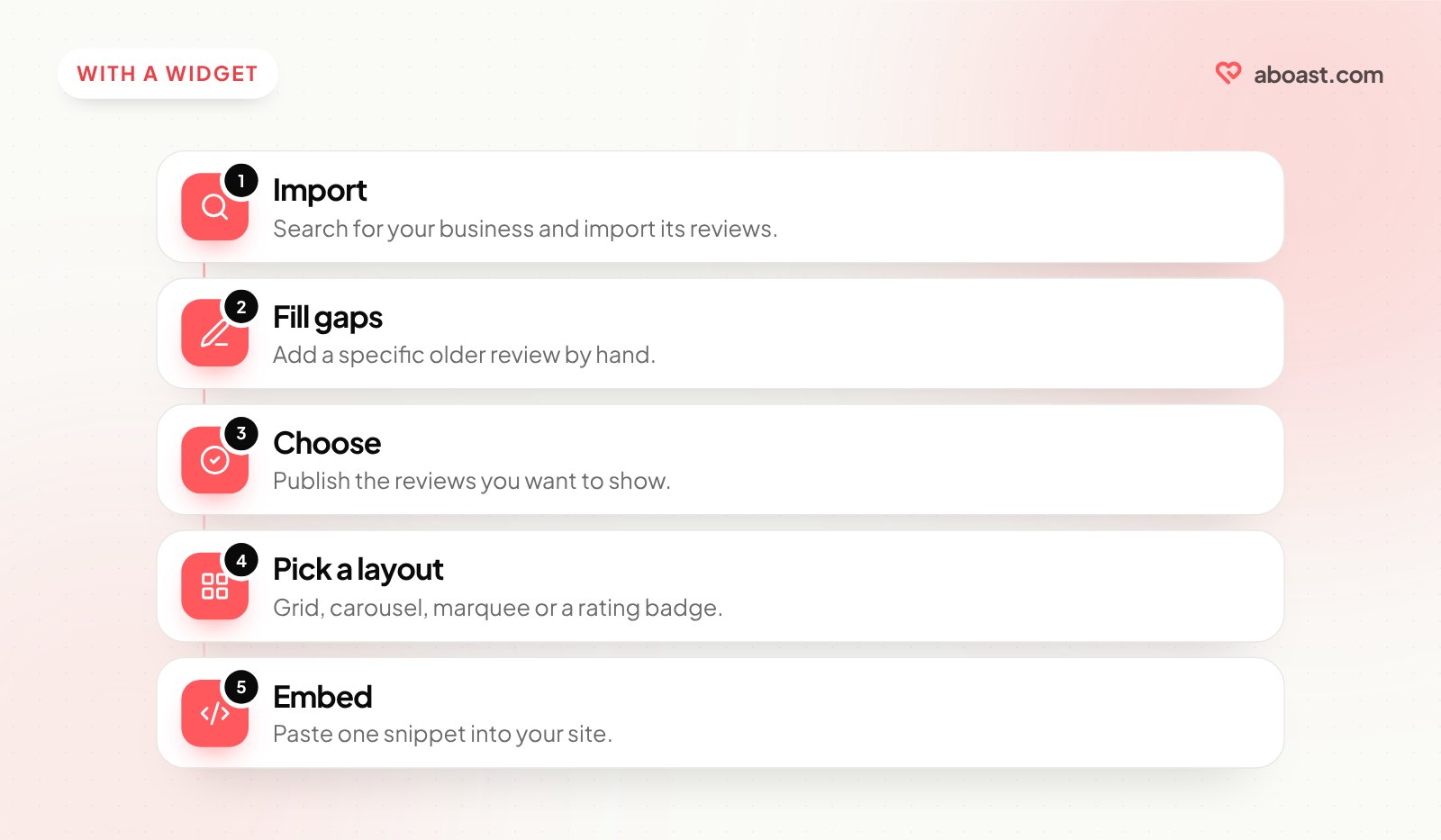
- Import: in the testimonials section, choose import from Google, search for your business name, and import its reviews. Each one comes in with the reviewer's name, star rating and text.
- Fill gaps: to feature a specific older review the import didn't include, add it by hand with the reviewer's name and rating.
- Choose: publish the reviews you want to show. Tag them if you plan to show different ones on different pages.
- Pick a layout: grid, masonry, carousel, list, a scrolling marquee, a single featured quote, or a compact rating badge.
- Embed: copy the snippet and paste it into your site — it works in Webflow, WordPress, Framer, Squarespace and plain HTML, anywhere that accepts an embed code.
The same widgets can mix in reviews imported from Trustpilot, Yelp and Tripadvisor, plus testimonials customers send through your own collection form.
Which Google reviews to show
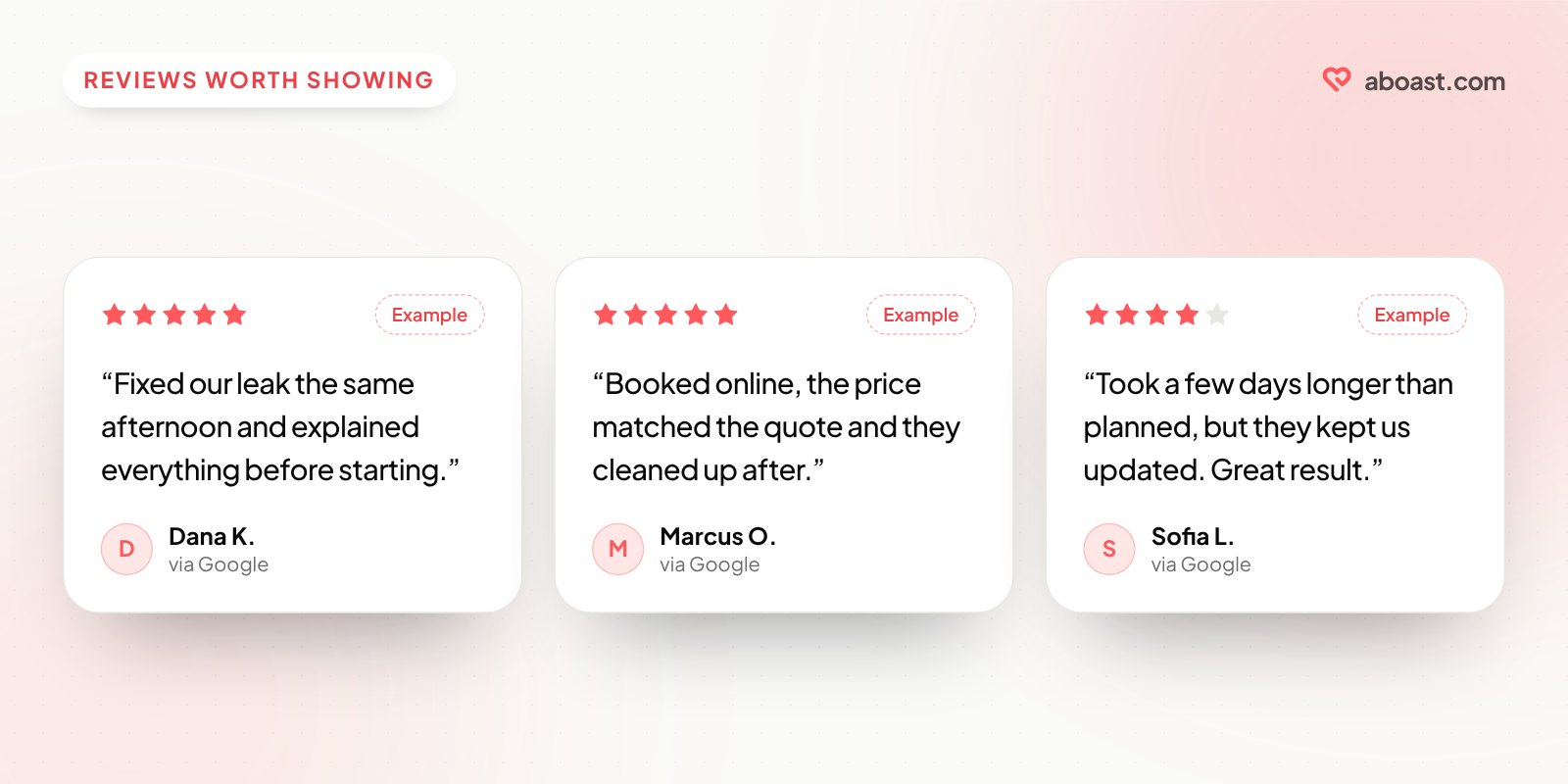
- Recent ones. A review from last month is more convincing than one from three years ago.
- Specific ones. "Fixed our leak the same afternoon and explained everything" beats "Great service!"
- Ones that answer common worries. Price, punctuality, cleanliness, how long it took, how you handled a problem.
- A believable mix. A wall of nothing but five-star one-liners can look filtered. A few detailed four-star reviews add credibility.
- Clearly labeled. Show that each review is from Google. It's honest, and "verified elsewhere" is exactly what makes it more trustworthy than a quote you wrote on your own site.
Where Google reviews help most on your site
| Business | Best place for reviews |
|---|---|
| Restaurants and cafés | Homepage, menu page, booking page |
| Salons, clinics, studios | Booking page, right above the "Book now" button |
| Trades and home services | Quote request form, service pages |
| Shops | Homepage and product pages |
| SaaS and online services | Pricing and signup pages — though Trustpilot, G2 or your own testimonials may fit better |
The rule is the same everywhere: put reviews right next to the moment someone decides. There's a longer guide in where to put testimonials on your landing page.
Don't add review stars markup for Google reviews
If you've read about getting gold stars in search results, you might be tempted to add review schema for the Google reviews on your site. Don't. Google's guidelines say ratings in your markup should be collected directly from your own users, not copied from other sites — and that includes Google itself. Embedding the reviews for visitors is fine; claiming them in structured data isn't. Review schema markup: get stars showing in Google explains what does qualify.
Keep them fresh
Set a reminder every month or two to import new reviews and swap out old ones. New reviews keep your site current, and they're a nice nudge to keep asking happy customers to leave one. If you'd like more reviews to choose from, how to ask for a testimonial works just as well for Google reviews.
Wrap-up
To embed Google reviews on your website, pick the option that matches your time and budget: copy a few by hand, embed a map for the rating, build on the API if you have a developer, or use a widget tool to import them and show them in your own style. Whichever you choose, label them clearly, keep them recent, and put them where people make the decision to buy.